Mcaster1AudioPipe
Broadcast-grade virtual audio routing for creators, broadcasters, and professionals. Create invisible audio cables between any apps on your Mac — no hardware, no hassle, no limits.
v1.2.0-beta.1 — Apple Developer ID signed & notarized. macOS 13 Ventura or later. Apple Silicon native (arm64).
What Is Mcaster1AudioPipe?
Think of it as invisible audio cables running inside your computer.
Virtual Audio Cables
Create named virtual audio devices that show up in your system just like a real microphone or speaker. Send audio from one app to another — silently, instantly, and with zero perceptible delay.
Visual Patch Bay
Drag-and-drop cables between devices in a gorgeous 3D patch bay interface. See your entire audio routing at a glance — just like a real studio patch panel, but on your screen.
Zero-Latency Routing
Built on lock-free ring buffers that move audio at sub-millisecond speeds. Your listeners will never hear a gap, a glitch, or a delay. Broadcast-grade performance, period.
Per-Pipe Controls
Every virtual cable gets its own volume, mute, and real-time level meters. Monitor peak levels, watch for clipping, and adjust your mix without ever leaving the app.
Up to 16 Pipes
Run up to 16 simultaneous named audio pipes. Create separate routes for music, voice, sound effects, talkback, mix-minus — whatever your workflow needs. Name them anything you want.
No Reboot Required
Install the driver and start routing audio immediately. No kernel extensions, no rebooting, no complicated setup wizards. It just works — on both macOS and Windows.
See It in Action
Mcaster1AudioPipe running on macOS with multiple virtual audio pipes, real-time monitoring, and system integration.
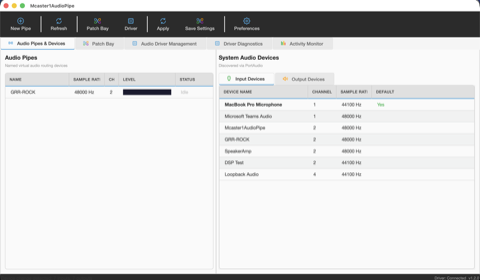
Audio Pipes & Devices
The main workspace. On the left, your named virtual pipes with live level meters — here a pipe called "GRR-ROCK" is active at 48 kHz stereo. On the right, every audio device on your system listed by name, channel count, and sample rate. This is where you create, rename, and manage your virtual cables. Internet radio operators typically create one pipe per audio source: music, voice, soundboard.
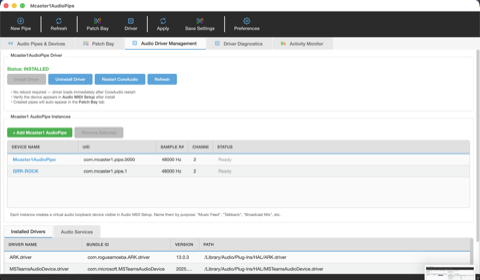
Multi-Pipe Driver Management
Two virtual pipes running simultaneously — "Mcaster1AudioPipe" (default) and "GRR-ROCK" (custom) — both at 48 kHz stereo and showing Ready status. Each pipe creates its own speaker and microphone device pair in macOS. Below, the Installed Drivers table shows all CoreAudio HAL drivers on the system. Click "+ Add Mcaster1 AudioPipe" to spin up more — up to 16 total.
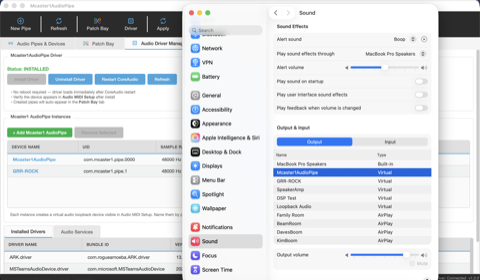
macOS Sound Settings — Output
Your AudioPipe devices appear as real speakers in macOS System Settings. Here "Mcaster1AudioPipe" is selected as the output device — any app playing audio to this device sends it straight into the virtual pipe. Use this to route Mcaster1AMP, Spotify, a browser, or any audio app directly to your streaming encoder without physical cables or external mixers.
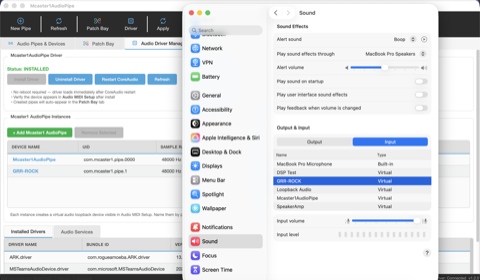
macOS Sound Settings — Input
The other side of the virtual cable. Each AudioPipe also appears as a microphone input. Here "GRR-ROCK" is selected as the input device in macOS. Your encoder (Mcaster1DSPEncoder, OBS, Ladiocast, Audio Hijack) captures audio from this virtual mic. This is how broadcasters route program audio to an Icecast/SHOUTcast encoder without any hardware loopback.
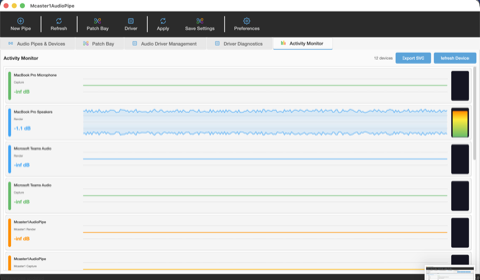
Real-Time Activity Monitor
Live waveform visualization for every audio device on your system. See at a glance which devices have signal, which are silent, and where your levels are peaking. The MacBook Pro Speakers row shows an active stereo waveform with peak metering (dB). Each device gets its own scrolling waveform, peak dB readout, and clip indicator. Essential for monitoring your broadcast chain end-to-end.
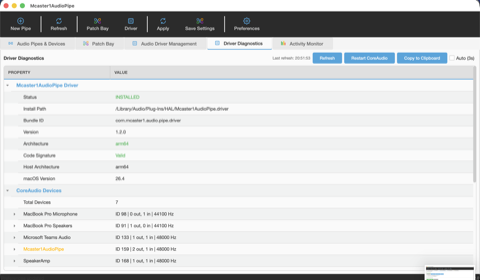
Driver Diagnostics
Full technical readout of your driver installation. Shows the driver status (INSTALLED), install path, bundle ID, version (1.2.0), architecture (arm64), and code signature verification (Valid). Below, a complete list of all 7 CoreAudio devices on this system with their object IDs, channel counts, and sample rates. Use this tab to verify your installation or troubleshoot audio routing issues.
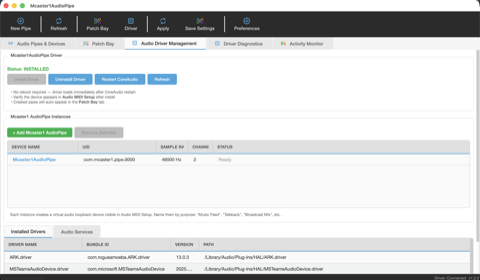
Driver Management — Getting Started
A fresh installation with one default pipe ready to go. The green "Status: INSTALLED" banner confirms the CoreAudio HAL driver loaded successfully — no reboot needed. From here you can uninstall the driver, restart CoreAudio, or refresh the device list. The tips below the instance table explain how each pipe appears in Audio MIDI Setup and the Patch Bay.
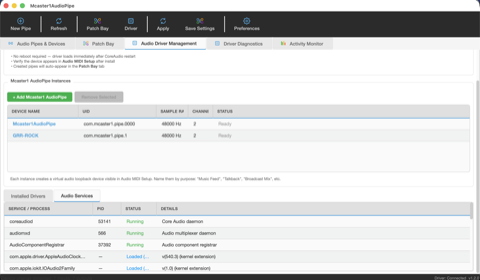
Audio Services Monitor
Under the hood view of macOS audio infrastructure. Shows coreaudiod (the Core Audio daemon), audiomxd (audio multiplexer), and AudioComponentRegistrar with their PIDs and running status. Below, loaded kernel extensions for system-level audio. Right-click any service to restart it. This is the kind of visibility audio engineers need when diagnosing routing problems on production broadcast systems.
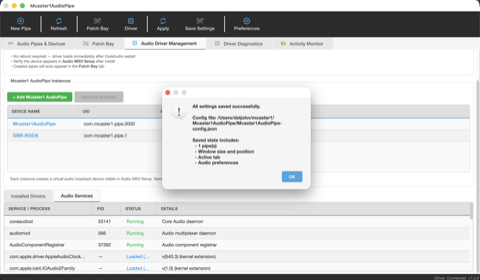
Persistent Configuration
Your entire setup saves to a JSON config file: pipe names, window position, active tab, and audio preferences. Click Save Settings and your routing configuration persists across restarts. The config file lives alongside your app at ~/Mcaster1/Mcaster1AudioPipe/ — easy to back up, copy to another machine, or version control for production broadcast environments.
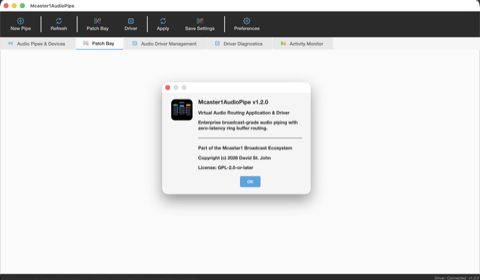
About Mcaster1AudioPipe
Version 1.2.0 — enterprise broadcast-grade audio piping with zero-latency ring buffer routing. Part of the Mcaster1 Broadcast Ecosystem alongside Mcaster1AMP (media player), Mcaster1DSPEncoder (broadcast encoder), and Mcaster1DNAS (streaming server). Open source under GPL-2.0-or-later.
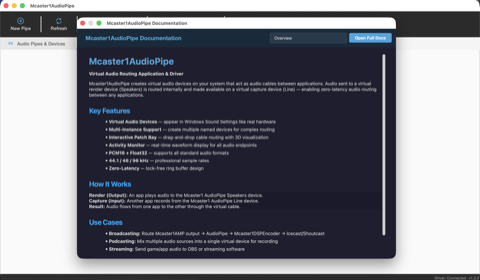
Built-In Documentation
Press F1 or open the help panel for a complete built-in reference. The overview covers key features, how audio rendering and capture work, and common use cases: broadcasting (Mcaster1AMP → AudioPipe → Encoder → Icecast/SHOUTcast), podcasting (multiple sources into one virtual device), and streaming (game/app audio to OBS or streaming software). No external docs needed.
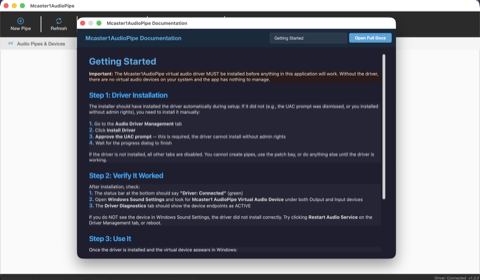
Getting Started Guide
Step-by-step instructions built right into the app. Step 1: Install the driver (one click from the Driver Management tab). Step 2: Verify it worked — check the status bar and macOS Sound Settings for your virtual devices. Step 3: Start using it — create pipes, name them, and route audio. Even if you've never used virtual audio before, you'll be up and running in under a minute.
How It Works
AudioPipe sits between your apps, connecting audio outputs to audio inputs through virtual devices.
For Broadcasters
Route your media player directly into your streaming encoder without any external hardware. Perfect for internet radio, podcasts, and live shows. Track metadata flows through automatically for stream titles.
For Content Creators
Separate your game audio, voice chat, music, and alerts into individual virtual cables. Mix them independently. Record or stream exactly what your audience should hear — nothing more, nothing less.
Part of the Mcaster1 Broadcast Stack
AudioPipe is the audio wiring that connects the entire Mcaster1 ecosystem together.
| Product | What It Does |
|---|---|
| Mcaster1AMP | Desktop media player — plays your music and sends it into AudioPipe |
| Mcaster1AudioPipe | Virtual audio routing — the invisible cables connecting everything (this product) |
| Mcaster1DSPEncoder | Broadcast encoder — captures audio from AudioPipe and streams it live |
| Mcaster1DNAS | Streaming server — delivers your broadcast to listeners worldwide |
Use them together for a complete end-to-end broadcast chain, or use AudioPipe standalone with any audio software you already own.
Platform Availability
Signed and notarized installers are available now for macOS. Windows and Linux are on the roadmap.
The macOS installer includes both the GUI application and CoreAudio HAL driver. Apple Developer ID signed and notarized — no Gatekeeper warnings.
Download & Install
Two installer options — both include the application and CoreAudio HAL driver. Apple Developer ID signed and notarized for a clean install experience.
PKG Installer (Recommended)
Guided installer with welcome screen, license agreement, and component selection. Installs the app and driver automatically — no manual steps required.
Download PKG (35 MB)DMG Disk Image
Traditional macOS disk image with an install script. Double-click the install command to set up both the app and driver.
Download DMG (36 MB)| Version: | 1.2.0-beta.1 |
| Architecture: | arm64 (Apple Silicon native) |
| Requires: | macOS 13 Ventura or later |
| Signed: | Developer ID Application: David St John (FCA38UPLY3) |
| Notarized: | Apple notarized & Gatekeeper approved |
| License: | GPL-2.0-or-later |
Technical Documentation
For developers and the curious — full technical docs, the development roadmap, and the Windows driver test harness are available online.